


Battery life matters, especially for Windows users like me. Nothing’s more frustrating than watching my battery percentage drop while I’m in the middle of something important. Common culprits include background apps and high brightness levels. Luckily, I’ve discovered some effective Battery Saving Tips that involve making simple adjustments, which can lead to impressive improvements in battery performance.
Power Saving Tips

Customize Power Plans
Optimizing your power settings can make a huge difference in your laptop battery life. I’ve seen firsthand how customizing power plans can extend battery life significantly. For instance, some users have reported increasing their battery life from just 7 hours to over 10 hours with a few simple adjustments. Imagine being able to work longer without worrying about your laptop battery draining!
To create a customized power plan, follow these steps:
- Open Control Panel and navigate to Power Options.
- Click on Create a power plan.
- Name your plan and customize settings for display, sleep, and more.
- For more granular options, click on Change advanced power settings. Here, you can adjust settings like processor power management and USB selective suspend.
These adjustments can raise battery life from 2-3 hours to 6 hours, which is a game-changer for anyone who relies on their laptop throughout the day. I once helped a friend boost their Aspire V Nitro’s battery life from 2-3 hours to 6 hours in just 20 minutes of settings adjustments. It’s incredible how much you can conserve battery with the right settings!
Activate Battery Saver Mode
Another effective way to extend battery life is by activating the Battery Saver mode. This feature limits background activities and notifications when your battery is running low. While it’s a fantastic tool, it does come with some trade-offs. Here’s a quick look at the limitations:
| Limitation/Trade-off | Description |
|---|---|
| Lack of Transparency and User Understanding | Users may not realize when performance is throttled due to the silent operation of the feature. |
| Potential for Unwanted Performance Throttling | Aggressive energy saving could lead to slowdowns during demanding tasks, causing frustration. |
| Limited Customization at Launch | Initial rollout lacks granular controls for users wanting manual overrides. |
| Restricted to Battery-Powered Devices | Only available on laptops and tablets, excluding desktop users from this feature. |
| Still in Testing | The feature is experimental and may not be available to all users or may not make it to retail builds. |
| Implementation Details Remain Murky | Lack of clear documentation on how the feature operates complicates user understanding and assessment. |
Despite these limitations, I find that activating Battery Saver mode is a smart move when I’m running low on power. It helps me conserve battery and keep my laptop running longer, especially during critical moments.
By implementing these battery-saving strategies, you can significantly improve your laptop’s battery life. Whether you’re customizing power plans or using Battery Saver mode, small changes can lead to big benefits.
Display Optimization
Adjust Brightness
One of the easiest ways to extend your laptop battery life is by adjusting the screen brightness. I’ve found that lowering the brightness not only helps save battery but also reduces eye strain, especially during long work sessions. Here’s what I recommend:
- Lowering your screen brightness is the most effective method for balancing visibility and battery life on Windows devices.
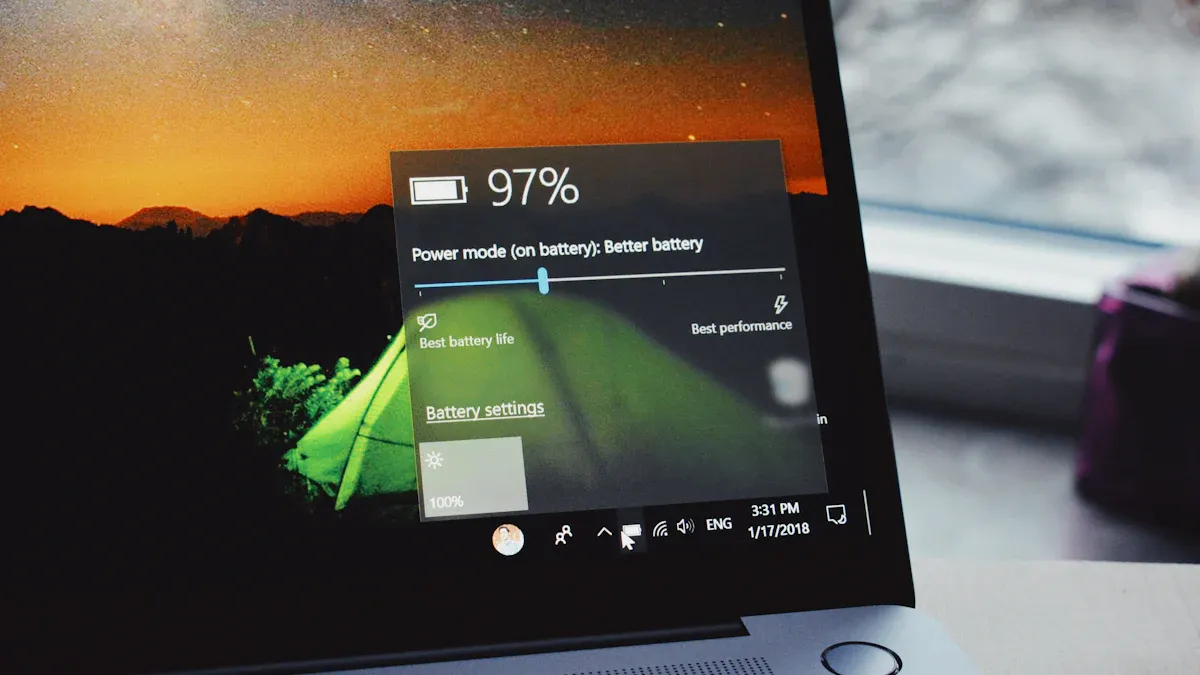
- You can adjust brightness settings quickly through the Action Center or Settings. Just click on the battery icon in the taskbar and slide the brightness bar to your desired level.
- For more precise control, you can use Command Prompt or PowerShell to set specific brightness levels.
When I’m using Battery Saver mode, I make it a point to keep my brightness around 50% or lower. This simple adjustment can lead to significant battery savings without compromising usability.
Set Sleep Timer
Another crucial step in optimizing your laptop’s battery life is setting a sleep timer. I’ve noticed that reducing the time before my laptop enters sleep mode can significantly enhance battery longevity. Here’s how to do it effectively:
- Navigate to Settings > System > Power & sleep.
- Set the screen to turn off after 5 minutes of inactivity.
- Configure the device to sleep after 10 minutes of inactivity.
By implementing these settings, I ensure that my laptop consumes less power when I’m not actively using it. Here’s a quick breakdown of recommended timers:
- Screen Off Timer: 3–5 minutes
- Sleep Timer: 5–10 minutes
These adjustments help me avoid unnecessary battery drain, especially during busy days when I might step away from my laptop frequently.
In addition to these settings, I also recommend using the Power Troubleshooter to automatically detect and resolve common energy issues. This tool can help you identify any settings that might be draining your battery unnecessarily.
By optimizing your display settings, you can make a noticeable difference in your laptop battery life. Whether it’s adjusting brightness or setting a sleep timer, these small changes can lead to big benefits.
Manage Background Apps
Background applications can be sneaky little battery drainers. I’ve noticed that even when I’m not actively using certain apps, they still run in the background, consuming power. By optimizing power settings and limiting idle applications, I’ve seen significant improvements in my laptop battery life. Here’s how you can manage those pesky background apps effectively.
Limit Startup Programs
One of the first steps I took was to limit the number of programs that launch at startup. Disabling unnecessary startup apps can help optimize battery life. Here’s how I do it:
- Press Ctrl + Shift + Esc to open Task Manager.
- Click on the Startup tab.
- Review the list and right-click on any application I don’t need, then select Disable.
By doing this, I prevent apps from running automatically and draining my laptop battery right from the start. Some common culprits include communication apps like Teams and Slack, as well as cloud backup services like OneDrive.
Use Task Manager
I also use Task Manager to keep an eye on which applications are consuming the most power. Here’s my quick guide:
- Open Task Manager by pressing Ctrl + Shift + Esc.
- Click More details to expand the view.
- Go to the Processes tab to see running applications and their resource usage.
- Right-click on a column header and select Power usage and Power usage trend to display these columns.
This way, I can easily identify and close resource-heavy applications that drain my laptop battery. By managing background apps effectively, I’ve managed to save anywhere from 15-30% of my battery life, which is a huge win!
In summary, optimizing your laptop’s battery life is easier than you might think. Here are the key tips I recommend:
- Customize your power plans to suit your needs.
- Activate Battery Saver mode when you’re running low.
- Adjust your display brightness and set a sleep timer.
- Manage background apps to reduce unnecessary drain.
Implementing these strategies can lead to immediate improvements in battery life. Remember, small changes can make a big difference over time. So, why not start today?
FAQ
How can I check my laptop battery health?
I often check my laptop battery health by going to Settings > System > Battery. This gives me insights into battery performance and usage.
What is Battery Saver mode?
Battery Saver mode is a feature in Windows that helps conserve battery by limiting background activities. I activate it when my battery runs low.
How do I disable startup apps?
To disable startup apps, I open Task Manager, click on the Startup tab, and right-click on apps I don’t need. This helps extend battery life.
