

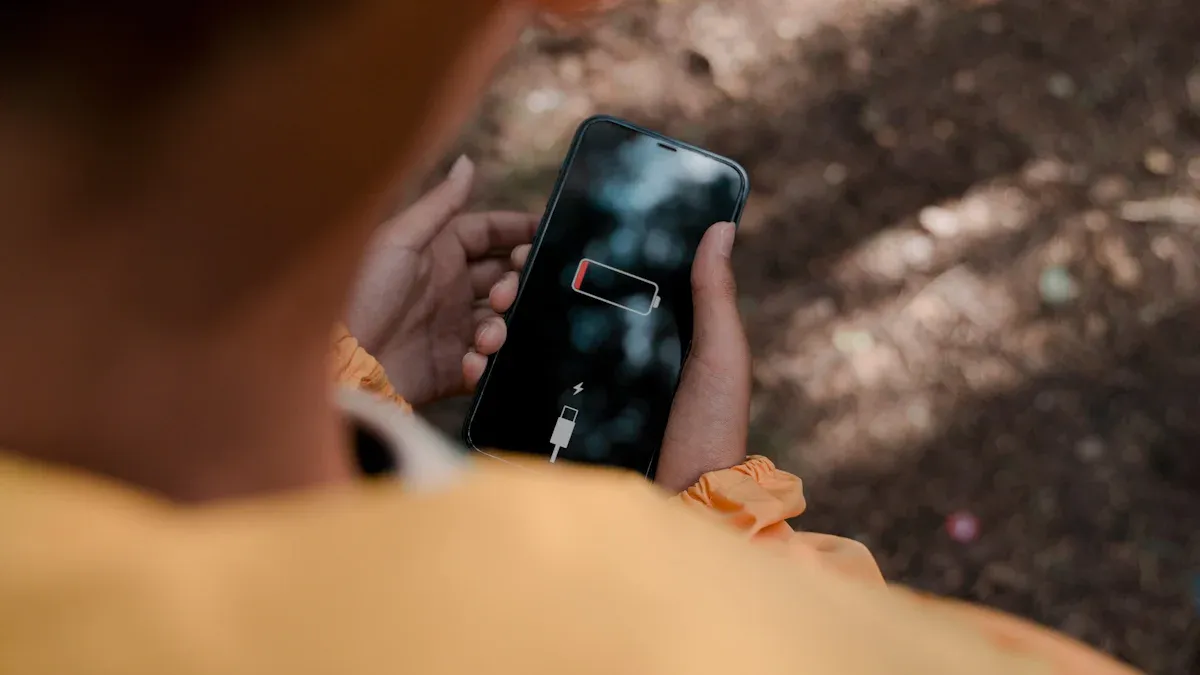
Imagine this: you’re ready to leave the house, but your phone won’t charge. You plug it in, only to see that dreaded battery icon stuck at the same percentage. Frustrating, right? Several things could cause your battery isn’t charging. Common culprits include damaged cables, blocked charging ports, or even software glitches. Don’t worry! You can tackle these problems with a few simple troubleshooting steps. Let’s dive in and get your device back up and running!
Key Takeaways
Check your charging cable for damage. Look for frays or kinks. Replace it if you find any issues.
Inspect the charging port for dust or debris. Clean it gently to ensure a proper connection.
Monitor your battery health. Avoid letting it drain completely and charge it when it reaches 20-30%.
Restart your device to fix temporary software glitches that may affect charging.
If problems persist, consider professional help or battery replacement to extend your device’s lifespan.
Reasons Battery Isn’t Charging
Faulty Charging Cable
One of the most common reasons your battery isn’t charging is a faulty charging cable. Over time, cables can wear out or get damaged. Look for frays, kinks, or exposed wires. If you notice any of these signs, it’s time to replace your cable.
Tip: Always use the original charger that came with your device. Third-party cables might not deliver the right power, leading to charging issues.
Defective Charging Port
Another potential problem could be a defective charging port. Dust, lint, or debris can accumulate in the port, preventing a proper connection. To check this, take a close look at the port. If you see any buildup, gently clean it out using a toothpick or a soft brush.
Note: Be careful not to damage the port while cleaning. If the port feels loose or doesn’t hold the charger securely, it might need professional repair.
Battery Health Issues
Battery health plays a crucial role in charging. If your battery is old or damaged, it may struggle to hold a charge. Here are some common battery health issues that can prevent charging:
Temperature Extremes: Charging your device in very hot or cold environments can harm the battery.
Deep Discharges: Letting your battery drain completely too often can shorten its lifespan.
Poor Charging Habits: Charging overnight or always charging to 100% can lead to overheating and degrade battery health.
To check your battery’s health, you can perform a full hardware check using automated solutions. These tools test various components, including the battery, and generate a report detailing its health status. You can also access built-in settings by navigating to Settings > Battery on your device. For more detailed information, consider using third-party applications like AccuBattery or DevCheck from the Google Play Store.
If you notice persistent issues with your battery, it might be time to consider a replacement. A failing battery can lead to more significant problems, including the battery will not charge at all.
Quick Fixes for Charging Issues
Check Power Source
Before diving into more complex solutions, start with the basics. Ensure that your power source is functioning properly. Here’s how you can do that:
Try a Different Outlet: Sometimes, the outlet you’re using may not work. Plug your charger into another outlet to see if that resolves the issue.
Use a Different Charger: If you have access to another charger, give it a try. This can help you determine if the problem lies with your charger or the device itself.
Tip: If you’re charging your device in your car, make sure the car is running. Some vehicles only provide power to the charging port when the engine is on.
Inspect Charging Cable
Next, take a close look at your charging cable. A damaged cable can lead to a battery that isn’t charging. Here are some signs to watch for:
Loose Connection: If the cable doesn’t fit snugly or wobbles in the port, it may be damaged.
Inconsistent Charging: If your device charges intermittently or only at certain angles, that’s a red flag.
Failure to Charge: If your device doesn’t charge at all when plugged in, the cable might be the culprit.
Slow Charging: Notice if your device charges significantly slower than usual.
Overheating: If the charging port area becomes excessively hot during charging, stop using it immediately.
Look for physical signs like frayed wires or cracks near the ends of the cable. Also, check for bent or broken pins inside the metal connector. If you spot any of these issues, it’s time to replace your cable.
Restart Device
Sometimes, a simple restart can work wonders. Restarting your device can help resolve temporary software-related issues that affect charging. Here’s why it’s effective:
Recalibration: A full restart can help recalibrate the battery management system, which may improve charging behavior.
Temporary Glitches: Restarting can clear out minor glitches that might be causing charging problems.
If you continue to experience issues after restarting, consider a more thorough recalibration process. This might involve unplugging your device for a few hours to reset the battery management system.
By following these quick fixes, you can often resolve common charging problems without needing professional help. If these steps don’t work, it may be time to explore more in-depth troubleshooting options.
Troubleshooting Steps for Charging
Test Charger
To diagnose a battery issue, start by testing your charger. Here’s how you can do it:
Use an electronic load to simulate battery conditions.
Set the load to Constant Voltage (CV) mode and program the desired terminal voltage (like 1.0V, 1.2V, or 1.44V).
Monitor the output current regulation of the charger.
Set the load to 1.40V to check if the charger shuts down when the battery is fully charged.
This process helps you determine if the charger is functioning properly. If it fails any of these tests, consider replacing it.
Clean Charging Port
A dirty charging port can lead to a battery that isn’t charging. Follow these steps to clean it safely:
Turn off your device to prevent short circuits.
Inspect the port with a light to check for dust or dirt.
Carefully remove dirt with a wooden toothpick. Use a dry toothpick to loosen debris without scraping too hard.
(Optional) Use compressed air to blow out any leftover dust, holding the can upright.
Test your connection by plugging in your cable to see if the device charges properly.
Cleaning the port can often resolve charging issues, especially if you notice that the connection feels loose or intermittent.
Update Device Software
Keeping your device software up to date can improve performance, including charging. Sometimes, updates may cause temporary battery drain due to background tasks. Here’s what you should know:
After an update, your device might run background processes that consume battery life.
It’s common for users to experience a decrease in battery performance for a short period following an update.
To update your software, go to your device settings and check for any available updates. This can help optimize your device for better charging performance.
By following these troubleshooting steps, you can often resolve charging issues without needing professional help. If problems persist, it might be time to consult a technician.
When Battery Will Not Charge
Signs of Failing Battery
You might notice several signs of a failing battery. Keep an eye out for these red flags:
Reduced battery life: Your device drains faster than it used to or dies suddenly.
Slow charging: It takes longer to charge or doesn’t charge at all.
Unexpected shutdowns: Your device shuts down unexpectedly, even with battery life remaining.
Bulging battery: If you see swelling or warping, it’s time to replace the battery immediately.
Device won’t turn on: If your device shows a charging icon but won’t power up, that’s a serious issue.
Recognizing these signs can help you determine if you need professional help.
Persistent Charging Issues
If you face persistent charging issues, it may indicate a deeper problem. Here are some common symptoms that suggest you should seek assistance:
Your device won’t turn on, despite showing a charging icon.
It shuts down randomly, even when there’s charge left.
The device gets unusually hot during use or charging.
You experience slow charging, regardless of the charger used.
There are visible signs of battery failure, like bulging or overheating.
These problems often mean that your battery is nearing the end of its lifespan. Lithium-ion batteries typically last between 300 to 500 charge cycles, which translates to about 1 to 1.5 years of daily use. After this period, you might notice a significant decline in performance.
Repair Options
If you’ve ruled out other issues and your battery will not charge, it’s time to consider repair options. Here’s what you can do:
Battery Replacement: If your battery shows signs of failure, replacing it is often the best solution. The average cost for a battery replacement varies by device type:
Smartphone Category
Average Cost
Standard Smartphone Models
$30 to $60
High-End Smartphone Models
$70 to $150
Special Repairs
$150 to $180+
Professional Diagnosis: If you’re unsure about the problem, consult a technician. They can provide a thorough diagnosis and recommend the best course of action.
Taking these steps can help you address charging issues effectively and extend the life of your device.
In summary, understanding why your battery isn’t charging can save you time and frustration. You learned about common problems like faulty cables, defective ports, and battery health issues. Remember, troubleshooting these issues can often resolve the problem before seeking professional help.
To keep your battery healthy, consider these tips:
Factor | Why It Harms Your Battery | Simple Solution |
|---|---|---|
High State of Charge | Keeping your battery at 100% for long periods puts maximum strain on its internal parts. | Unplug your phone once it hits around 80%. |
Deep Discharges | Letting your battery drop to 0% can make it unstable. | Start charging when it gets down to about 20-30%. |
Excessive Heat | Heat speeds up chemical reactions, leading to loss of charge capacity. | Keep your phone out of direct sunlight. |
Fast Charging | It generates more heat and stress on the battery. | Use a standard charger for overnight charging. |
Stay informed about your device’s battery health to extend its lifespan!
FAQ
What should I do if my battery won’t charge at all?
If your battery won’t charge, first check the charger and cable. Try a different outlet or charger. If the problem persists, inspect the charging port for debris. If none of these steps work, consider seeking professional help.
How can I tell if my battery is failing?
Signs of a failing battery include rapid battery drain, slow charging, unexpected shutdowns, or a bulging battery. If you notice these issues, it’s time to evaluate your battery’s health and consider a replacement.
Can extreme temperatures affect my battery?
Yes, extreme temperatures can harm your battery. High heat can cause it to overheat, while cold can reduce its performance. Always charge your device in a moderate environment to maintain battery health.
Is it safe to use a third-party charger?
Using a third-party charger can be risky. It may not provide the correct voltage, leading to charging issues or even damaging your battery. Stick to the original charger or certified alternatives for safety.
How often should I replace my battery?
Most lithium-ion batteries last between 300 to 500 charge cycles, roughly 1 to 1.5 years of daily use. If you notice significant performance drops, it’s time to consider a replacement.