

Battery life matters! You rely on your smartphone for everything from staying connected to capturing moments. When your battery drains too quickly, it can feel frustrating. Luckily, smart settings can help you extend battery life and keep your device running longer. Let’s explore how you can make simple adjustments for better performance!
1. Enable Power Saving Mode
Power saving mode is a game changer for your smartphone’s battery life. When you enable this feature, your device automatically adjusts settings to reduce power consumption. This means you can keep using your phone longer without constantly searching for a charger.
Here are some benefits of using power saving mode:
- Extended Battery Life: It can significantly increase your battery life, especially during critical moments.
- Reduced Background Activity: Apps will limit their background activity, which helps save power.
- Lower Brightness: Your screen brightness may automatically decrease, further conserving battery.
To activate power saving mode, follow these simple steps:
- Open Settings: Go to your smartphone’s settings app.
- Battery Options: Look for the “Battery” or “Power” section.
- Enable Power Saving Mode: Tap on “Power Saving Mode” or “Battery Saver” and toggle it on.
Tip: You can customize the settings to suit your needs. For example, you might want to go for low-power mode when your battery drops below 20%.
Studies show that using power saving mode can lead to impressive battery savings. For instance, when your brightness level is set to 100%, you can save between 39% to 47% of battery life compared to lower settings. Check out the table below for more insights:
| Brightness Level | Battery Savings (Light Mode to Dark Mode) |
|---|---|
| 30%-50% | 3%-9% |
| 100% | 39%-47% |
By enabling power saving mode, you take a proactive step toward extending battery life and ensuring your smartphone stays powered when you need it most.
2. Adjust Screen Brightness
Did you know that your screen brightness plays a huge role in your smartphone’s battery life? Keeping your brightness high can drain your battery faster than you might think. In fact, reducing your screen brightness can lead to significant battery savings. For example, an iPhone 6s at minimum brightness used 54% less battery compared to maximum brightness. Similarly, a Moto X Pure Edition Android phone consumed 30% less battery at lower brightness levels.
Now, let’s talk about the difference between manual and automatic brightness settings.
- Manual Brightness: You control the brightness level yourself. While this gives you full control, it can lead to higher battery usage if you forget to lower it in bright environments.
- Automatic Brightness: Your smartphone adjusts the brightness based on the surrounding light. This setting can save battery life. For instance, in a moderately lit office, an iPhone 6s with auto-brightness used only 16% of the battery over an hour. In contrast, an Android phone under similar conditions used 25% of a full charge.
Using automatic brightness not only helps you extend battery life but also makes your screen easier to read in different lighting conditions. So, if you want to keep your device running longer, adjusting your screen brightness is a smart move!
Tip: Consider setting your brightness to a lower level when indoors or in dim lighting. This simple adjustment can make a big difference in your battery performance.
3. Turn Off Background App Updates
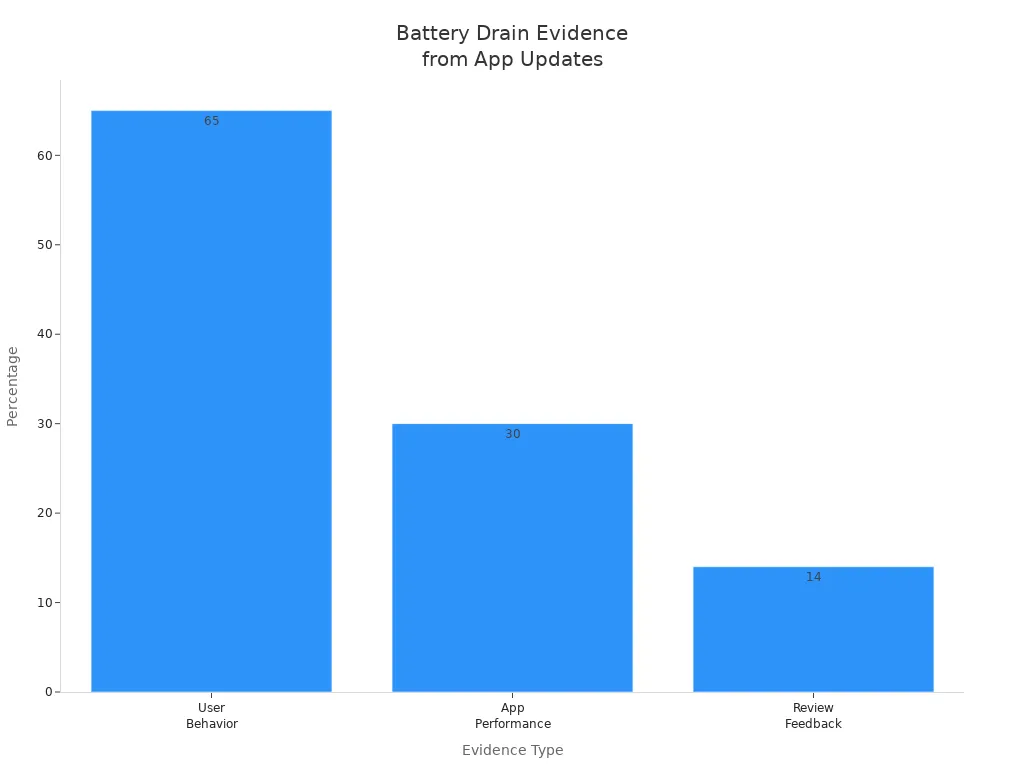
Background app updates can quietly drain your smartphone’s battery. These updates allow apps to refresh their content even when you’re not using them. While this feature keeps your apps up-to-date, it can significantly impact your battery life. In fact, studies show that 65% of users consider uninstalling apps that consistently drain their battery.
To help you extend battery life, here are some steps to turn off background app updates on both Android and iOS devices:
- Review Battery Usage Statistics: Check which apps consume the most power by going to Settings > Battery.
- Limit Background App Refresh (iOS): Navigate to Settings > General > Background App Refresh and disable it.
- Restrict Background Data (Android): Go to Settings > Network & Internet > Data Usage and toggle off ‘Background data’ for high-usage apps.
- Force Stop Non-Essential Apps: In Settings > Apps, select apps and tap ‘Force Stop’ if they are running unnecessarily.
- Disable Autostart Permissions: Use manufacturer-specific tools or apps like Greenify on Android to prevent apps from launching at boot.
- Adjust Location Access: Set location permissions to ‘While Using’ instead of ‘Always’ in privacy settings.
By taking these steps, you can reduce unnecessary battery drain and keep your smartphone running longer. Remember, every little adjustment counts when it comes to conserving power!
4. Limit Location Services
Location services can be a double-edged sword. They help you find directions, check in on social media, and even track your fitness. However, they can also drain your battery without you realizing it. For instance, GPS navigation uses a lot of power, but apps like Facebook and Instagram keep your location active, leading to unnecessary battery drain.
To extend battery life, consider limiting location services. You don’t need every app tracking your location all the time. Instead, use location services only for essential apps. For example, you might want to allow your maps app to access your location while keeping social media apps off. This way, you save power without sacrificing functionality.
Disabling location services is easy. Here’s how you can do it on both Android and iOS devices:
- For Android:
- Open the Settings app.
- Go into Location.
- Toggle off Use location.
- For iOS:
- Launch the Settings app.
- Go into Privacy & Security.
- Tap on Location Services.
- Toggle off Location Services.
- Confirm by hitting Turn Off.
By selectively disabling location services, you can significantly reduce battery drain. Remember, the actual savings depend on how different apps utilize these services. For example, using GPS for short trips consumes minimal battery, while apps that constantly track your location can drain it quickly. So, take control of your settings and enjoy longer battery life!
5. Use Airplane Mode
Airplane Mode is a fantastic feature that can help you extend battery life when you need it most. When you activate this setting, your smartphone disables all wireless connections, including cellular, Wi-Fi, and Bluetooth. This means your device stops searching for signals, which can drain your battery quickly.
Here are some scenarios where using Airplane Mode is especially beneficial:
- Poor or No Cellular Signal: If you’re in an area with weak signals, your phone works overtime to find a connection. Airplane Mode stops this search, saving battery.
- Overnight Charging or Storage: Enable Airplane Mode while charging to reduce background activity. This allows your phone to stay in deep sleep longer, minimizing unnecessary wake-ups.
- Offline Activities: If you plan to read or listen to music offline, turn on Airplane Mode. This prevents interruptions and reduces battery drain.
- Emergency Battery Conservation: When your battery is low, Airplane Mode can extend remaining power by hours, especially when combined with other power-saving measures.
Additionally, consider using Airplane Mode when your phone is overheating. It reduces heat generation by shutting down power-hungry connections. You can also use it for faster charging, as it stops background activity, allowing your device to charge more quickly.
Using Airplane Mode not only helps you save battery but also keeps distractions at bay. So, the next time you find yourself in a situation where battery life is critical, don’t hesitate to switch on Airplane Mode!
6. Disable Push Notifications
Push notifications can be a major culprit when it comes to draining your smartphone’s battery. Every time your device receives a notification, it wakes up the screen and uses power to display the alert. This constant activity can add up quickly, especially if you receive a lot of notifications throughout the day. Here are some ways notifications contribute to battery drain:
- High-priority messages wake your device frequently.
- Frequent notifications lead to more wake-ups.
- Lowering notification frequency can help reduce battery usage.
- Optimizing notification payloads decreases data transfer impact.
To help you save battery life, consider disabling unnecessary push notifications. Here’s how you can do it on both Android and iOS devices:
For Android:
- Open the Settings app.
- Tap on Apps.
- Select the app you want to manage.
- Tap Notifications.
- Toggle Allow Notifications off or on as needed.
For iOS:
- Open the Settings app.
- Scroll down to the app you want to adjust.
- Tap Notifications.
- Toggle Allow Notifications and Sounds on or off.
By managing your push notifications, you can significantly reduce battery drain. You might also want to set specific times for notifications using features like Do Not Disturb. This way, you can enjoy your smartphone without constant interruptions while saving power at the same time!
7. Manage Connectivity Settings
Managing your connectivity settings can make a big difference in your smartphone’s battery life. Both Wi-Fi and cellular data have their pros and cons when it comes to power consumption. Generally, Wi-Fi tends to consume more power due to its complex signal processing, especially in areas with poor coverage. On the other hand, cellular data can drain your battery quickly when the signal is weak, as your device works harder to maintain a connection.
To help you optimize your battery life, here are some smart tips for managing your connectivity settings:
- Turn Off Bluetooth and Wi-Fi: When you’re not using them, switch off Bluetooth and Wi-Fi. This prevents your smartphone from constantly searching for connections, which can drain your battery.
- Use Wi-Fi Instead of Cellular Data: Whenever possible, connect to Wi-Fi. It usually consumes less battery power compared to cellular data, especially when the signal is strong.
- Enable Airplane Mode: If your battery is running low, consider turning on Airplane Mode. This deactivates multiple features that consume power, allowing your device to conserve energy.
By following these tips, you can effectively manage your connectivity settings and extend your smartphone’s battery life. Remember, every little adjustment counts when it comes to keeping your device powered up!
8. Optimize App Settings
Optimizing your app settings can significantly improve your battery life. Some apps are notorious for draining your battery faster than others. Here’s a list of common battery-draining apps you might want to keep an eye on:
- Strava
- Zoom
- Google Meet
- YouTube
- TikTok
- Call of Duty: Mobile
- Amazon apps
- ChatGPT and other AI apps
These apps often run in the background, consuming power even when you’re not using them. To help you manage this, you can adjust app permissions. Many apps request access to features they don’t actually need. For example, a photo editing app doesn’t require your location to function. By limiting unnecessary permissions, you can prevent these apps from consuming excess power.
Here’s how to adjust app permissions on both Android and iOS devices:
For Android:
- Open the Settings app.
- Tap on Apps.
- Select the app you want to manage.
- Tap Permissions.
- Toggle off any permissions that seem unnecessary.
For iOS:
- Open the Settings app.
- Scroll down to the app you want to adjust.
- Tap Privacy.
- Select the permissions you want to change.
- Toggle off any that aren’t essential.
By optimizing your app settings and permissions, you can take control of your battery life. Every little adjustment helps, so don’t overlook these simple yet effective changes!
9. Enable Adaptive Battery
Have you heard about Adaptive Battery? This smart feature helps extend your battery life by learning how you use your apps. It identifies which apps you rarely use and reduces their background activity. This means your phone conserves energy without you even noticing a difference in performance.
Here’s how Adaptive Battery works:
- It tracks your app usage patterns over time.
- It limits background activity for apps you don’t use often.
- You’ll see a significant improvement in battery life without sacrificing functionality.
For example, one user reported a 25% reduction in background battery drain after enabling this feature. That’s a big win for anyone looking to stretch their battery life!
To enable Adaptive Battery on your device, follow these steps:
- Open your Settings app.
- Tap on Battery.
- Look for Adaptive Battery and toggle it on.
By using Adaptive Battery, you can enjoy longer battery life while your phone learns your habits. This feature is a great way to optimize your battery usage without any extra effort on your part. So, why not give it a try? You might be surprised at how much longer your battery lasts!
10. Use Dark Theme
Switching to a dark theme can be a smart move for your battery life, especially if you have an OLED screen. Why? Well, OLED displays use less power when showing darker colors. In fact, black pixels on an OLED screen are turned off completely, which means they don’t consume any battery. This can lead to noticeable battery savings, especially if you spend a lot of time on your device.
Here are some benefits of using dark mode:
- Reduced Power Consumption: Dark themes can save battery life by minimizing the energy used by your screen.
- Less Eye Strain: Dark mode can be easier on your eyes, especially in low-light conditions.
- Stylish Look: Many users find dark themes visually appealing and modern.
Enabling dark theme on your device is easy! Here’s how you can do it:
For Android:
- Open the Settings app.
- Tap on Display.
- Select Dark Theme or Night Mode and toggle it on.
For iOS:
- Open the Settings app.
- Tap on Display & Brightness.
- Choose Dark under Appearance.
By making this simple change in your settings, you can enjoy a longer-lasting battery while giving your eyes a break. So, why not give dark mode a try? You might be surprised at how much battery life you can save!
11. Update Your Software
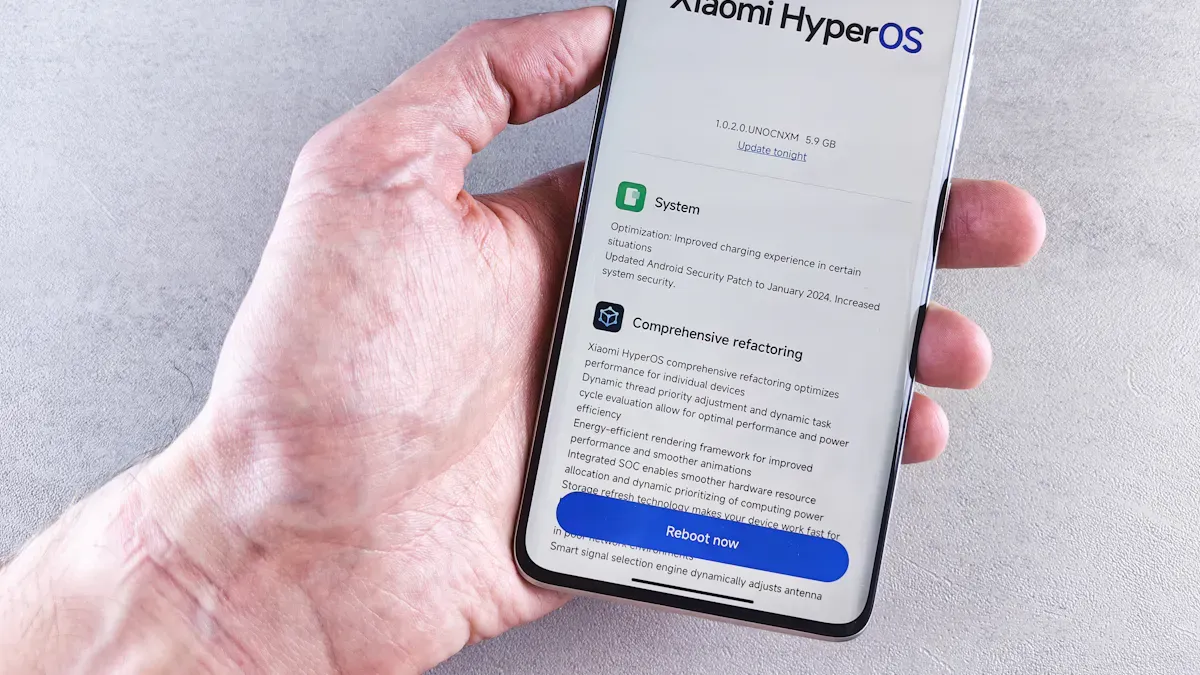
Keeping your software up to date is crucial for your smartphone’s performance and battery life. Software updates often include bug fixes, security patches, and performance improvements. These updates can help your device run more efficiently, which means it uses less battery. When you skip updates, you might miss out on important optimizations that can extend your battery life.
Here’s how to check for updates on your device:
For Android:
- Open the Settings app.
- Scroll down and tap on System.
- Select Software Update.
- Tap Check for Updates. If an update is available, follow the prompts to install it.
For iOS:
- Open the Settings app.
- Tap on General.
- Select Software Update.
- If an update is available, tap Download and Install.
Tip: Make sure your device is connected to Wi-Fi and has enough battery before starting the update. This ensures a smooth process without interruptions.
By regularly updating your software, you can keep your device running smoothly and efficiently. This simple step can lead to better battery performance, so don’t overlook it!
12. Delete Unused Accounts
Did you know that unused accounts can quietly drain your smartphone’s battery? When you create accounts for various apps and services, they often run background processes. These processes can consume battery life even when you’re not actively using them. By deleting accounts you no longer need, you can help your device run more efficiently and save battery life.
Here’s how to delete those unused accounts:
- Identify Unused Accounts: Take a moment to think about the apps and services you rarely use. Make a list of accounts you can live without.
- Log In to Each Account: Open the app or website for each account you want to delete. Log in using your credentials.
- Find Account Settings: Look for the account settings or profile section. This is usually found in the menu or under your profile picture.
- Delete the Account: Most services will have an option to delete or deactivate your account. Follow the prompts to complete the process. If you can’t find the option, check the help section or FAQs for guidance.
- Uninstall the App: After deleting the account, uninstall the app from your device. This will further reduce battery drain.
Tip: Regularly review your accounts and delete any that you no longer use. This simple habit can lead to better battery performance over time.
By taking these steps, you can minimize unnecessary battery drain and keep your device running smoothly. Remember, every little adjustment counts when it comes to conserving power!
13. Limit Widgets on Home Screen
Widgets can be handy, but they can also drain your battery faster than you might expect. Each widget runs in the background, constantly updating information like weather, news, or social media feeds. This continuous activity uses power, which can lead to quicker battery drain. If you want to extend your battery life, consider limiting the number of widgets on your home screen.
Here’s how you can remove those battery-draining widgets:
- Long Press on the Widget: Find the widget you want to remove. Press and hold it until a menu appears.
- Select Remove: Look for the option that says “Remove” or “Delete.” Tap it to get rid of the widget.
- Confirm Removal: If prompted, confirm that you want to remove the widget from your home screen.
By limiting widgets, you reduce the background activity that drains your battery. You’ll notice a difference in how long your device lasts between charges.
Tip: Consider using only essential widgets. For example, keep a calendar widget if you rely on it for appointments, but remove the ones you rarely check.
Taking control of your home screen settings can lead to a more efficient device. So, go ahead and declutter those widgets to enjoy longer battery life!
14. Control Sync Settings
Syncing keeps your apps updated and your data fresh. However, it can also drain your battery faster than you might expect. When your device constantly syncs data, it uses power to connect to the internet and refresh information. This can lead to quicker battery depletion, especially if you have multiple apps syncing at once.
To help you save battery life, consider adjusting your sync settings. Here’s how you can do it:
- Limit Sync Frequency: Instead of syncing every few minutes, change the settings to sync less frequently. For example, you can set your email app to sync every hour instead of every 15 minutes. This simple change can make a big difference in battery life.
- Turn Off Sync for Unused Apps: If you have apps that you rarely use, turn off their sync settings. Go to your app settings and disable sync for those apps. This way, they won’t drain your battery when you’re not using them.
- Use Manual Sync: For apps that don’t need constant updates, switch to manual sync. This means you’ll have to refresh the app yourself, but it saves battery life when you don’t need real-time updates.
- Check Sync Settings Regularly: Make it a habit to review your sync settings. Sometimes, apps update their default settings after updates. Keeping an eye on these can help you maintain optimal battery performance.
By controlling your sync settings, you can significantly extend your battery life. It’s a small adjustment that can lead to big savings!
15. Restart Your Device Regularly
Restarting your device might seem like a simple task, but it can work wonders for your battery health. When you restart, you clear out temporary files and close apps running in the background. This helps your device run more efficiently, which can lead to better battery performance.
Here are some benefits of restarting your device regularly:
- Improved Performance: A fresh start can speed up your device and reduce lag.
- Cleared Cache: Restarting clears temporary files that can slow down your system.
- Reduced Background Activity: It stops apps from running unnecessarily, saving battery life.
So, how often should you restart your device? Here are some recommendations:
- Daily: If you use your device heavily, a daily restart can keep things running smoothly.
- Weekly: For average users, restarting once a week is a good practice.
- Whenever You Notice Sluggishness: If your device feels slow or apps are misbehaving, a quick restart can help.
Tip: Set a reminder on your calendar to restart your device. This small habit can lead to significant battery savings over time!
By making it a routine to restart your device, you can enjoy a smoother experience and extend your battery life. So, why not give it a try? Your device will thank you!
You’ve learned some smart settings to boost your battery life! From enabling power-saving mode to managing connectivity, each tip can make a difference. 🌟 Implement these changes today, and enjoy longer-lasting power on your device. Your battery will thank you!