

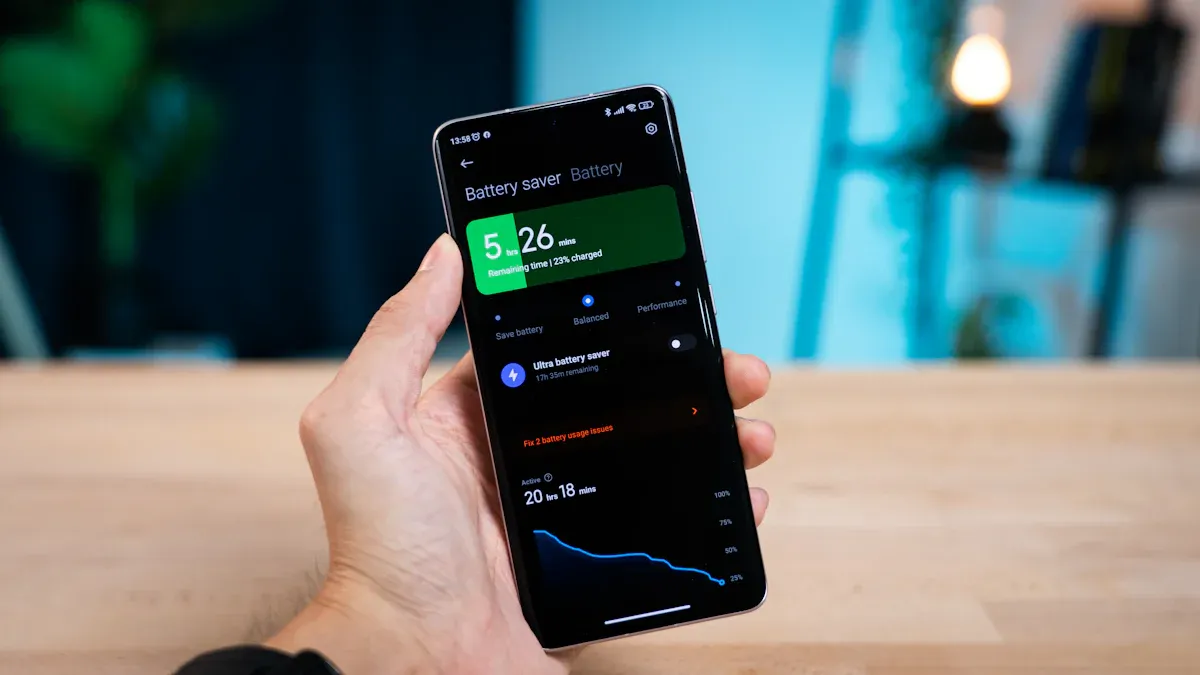
Battery life is crucial for your Android device. You rely on it daily, but many things can drain it quickly. For example, ongoing notifications from active apps, high screen brightness, and location services can all take a toll on your battery. Fortunately, power-saving modes can help you extend that precious battery life, making sure your phone lasts longer when you need it most.
Key Takeaways
Use Standard Power Saving Mode to reduce background activity and dim your screen, extending battery life by a few hours.
Activate Extreme Power Saving Mode in emergencies to pause most apps and maximize battery life for days.
Enable Adaptive Battery to let your device learn your app usage patterns, optimizing battery life by limiting background activity.
Power-Saving Modes
When it comes to extending your battery life, Android offers several power-saving modes that can help you out. Let’s break down the main options you have:
Standard Power Saving Mode
The Standard Power Saving Mode makes moderate adjustments to your device. It reduces background activity and dims your screen brightness. You can still use most of your apps, but they might run a bit slower. Here’s how it works:
Slower performance: The CPU operates at a reduced speed.
Delayed notifications: Background checks for updates are limited.
Dimmer screen: Brightness is lowered to save power.
This mode can extend your battery life by a few hours without significantly impacting your experience.
Extreme Power Saving Mode
If you find yourself in a pinch, the Extreme Power Saving Mode is your best friend. This mode is designed for emergencies. It pauses most apps and turns off features like Wi-Fi and Bluetooth. You might even see a black-and-white display! Here’s what you can expect:
Feature | Standard Power Saving Mode | Extreme Power Saving Mode |
|---|---|---|
App Access | All apps available, but may run slower. | Only essential apps like Phone and Messages. |
Notifications | Often delayed for non-essential apps. | Paused for most apps to save battery. |
Connectivity | Wi-Fi stays on, but background use is limited. | May turn off Wi-Fi and Bluetooth. |
Visuals | Screen brightness is reduced. | May switch to a simplified, dark theme. |
This mode can extend your battery life for many additional hours or even days!
Adaptive Battery Feature
The Adaptive Battery feature takes things a step further. It uses machine learning to predict which apps you’ll need soon. By understanding your usage patterns, it limits background activity for apps you don’t use often. This smart management helps optimize your battery life significantly.
Enabling Power Saving Mode
Accessing Settings
To enable the power-saving mode on your Android device, you can start by accessing the settings. Here’s a simple step-by-step guide:
Open the Settings app on your phone.
Scroll down and tap on Battery.
Look for an option called Battery Saver or Power saving mode.
Toggle the switch to turn it on.
This method gives you comprehensive control over your battery settings. You can adjust various options to suit your needs.
Tip: You can also set a threshold for automatic activation. For example, you might want the battery saver to kick in when your battery reaches 20% or 15%. This way, you won’t have to worry about manually turning it on when your battery gets low. Just follow these steps:
Open the Settings app.
Tap on Battery.
Select Battery Saver.
Set your desired battery percentage for activation.
Quick Access via Quick Panel
If you need to enable power-saving mode quickly, the Quick Settings panel is your best bet. Here’s how it compares to accessing it through the settings:
Feature | Quick Panel | Settings Menu |
|---|---|---|
Accessibility | Fast access by swiping down | Requires navigation through multiple menus |
Control Level | Limited control over power settings | Comprehensive control over device capabilities |
User Convenience | Quick toggling for immediate changes | More reliable for in-depth management |
Customizability | Can customize panel contents | Fixed layout, less customizable |
Situational Use | Ideal for quick adjustments during use | Necessary for detailed settings adjustments |
Using the Quick Panel allows you to toggle the battery saver mode with just a swipe. This streamlined access can significantly improve user adoption of the feature. Research shows that reducing interaction steps can decrease task abandonment by 68%. So, having quick access makes it easier for you to manage your battery life effectively.
Did You Know? The Quick Settings panel on Android allows for over 12 customizable toggles. This means you can set up your panel to include the battery saver for even faster access!
By utilizing both methods, you can ensure that your Android device stays powered up when you need it most.
Tips for Better Battery Life
Managing Background Apps
Managing background apps is a smart way to boost your battery life. While studies show that background apps contribute less than 5% to overall battery usage, it’s still worth keeping an eye on them. Some apps can drain your battery faster than others. Here’s how to manage them effectively:
Limit Background Tasks: Use tools like Android’s WorkManager or JobScheduler to manage non-essential tasks. This helps save battery life by reducing unnecessary activity.
Identify Power-Hungry Apps: Check your battery settings to see which apps consume the most power. You can limit their background activity or uninstall them if they’re not essential.
Optimize Network Usage: Implement batching of requests and caching strategies to lower power consumption. This can make a noticeable difference in your battery life.
Adjusting Screen Brightness
Your screen brightness plays a significant role in battery consumption. A bright display can drain your battery quickly. Here are some tips to adjust it effectively:
Lower Brightness: Reducing your screen brightness is one of the simplest ways to extend battery life. For instance, tests show that using the minimum brightness can save up to 54% of battery on devices like the iPhone 6s.
Use Adaptive Brightness: Enable adaptive brightness settings. This feature automatically adjusts your screen brightness based on your surroundings, helping you save power without sacrificing visibility.
Switch to Dark Mode: If your device has an OLED or AMOLED screen, consider switching to dark mode. This can save between 3% to 9% power at moderate brightness levels. At full brightness, it can reduce battery drain by up to 58.5%.
Disabling Unused Features
Turning off unused features can significantly improve your battery life. Here are some features to consider disabling:
Location Services: Location services can be a major battery drain, especially when set to high accuracy. Adjust app permissions to allow location access only while using the app, rather than all the time.
Turn Off Bluetooth and Wi-Fi: If you’re not using Bluetooth or Wi-Fi, turn them off. These features constantly search for connections, which can drain your battery.
Disable Background Location Access: Many apps access your location even when you’re not using them. Disable this feature to keep your battery from draining unnecessarily.
By following these tips, you can optimize your Android device’s battery life beyond just using the battery saver mode. Small adjustments can lead to significant improvements in how long your device lasts throughout the day.
Using power-saving modes on your Android device can greatly enhance your battery life. Here’s why you should consider them:
They help you customize settings for better performance.
You’ll feel more in control of your battery usage.
Remember, 70% of users uninstall apps that drain their battery too quickly. So, take charge! Implement the tips we discussed to keep your device running longer. Your battery will thank you! 🔋
FAQ
What is the difference between Standard and Extreme Power Saving Modes?
Standard Power Saving Mode reduces background activity, while Extreme Power Saving Mode limits access to essential apps only, maximizing battery life.
How can I enable the battery saver on my Android device?
You can enable the battery saver through the Settings app or quickly via the Quick Settings panel by tapping the battery icon.
Does using power-saving modes affect app performance?
Yes, using power-saving modes may slow down app performance as they limit background activity to extend battery life.