


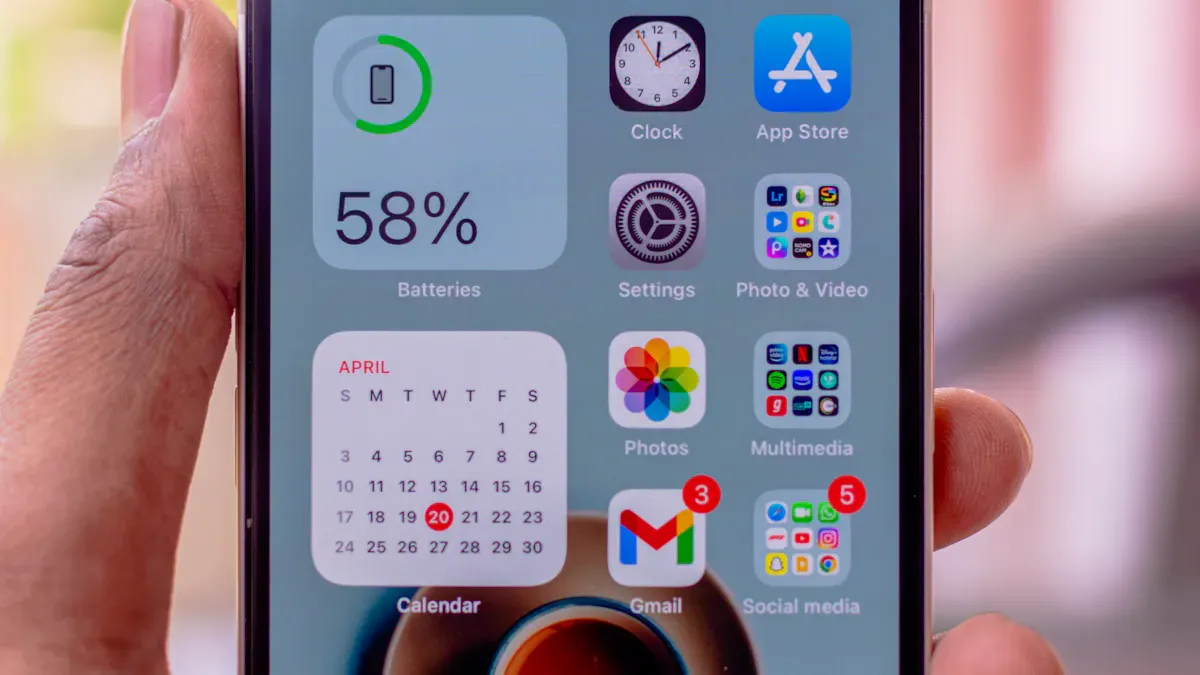
Battery life is crucial for your smartphone experience. Without a charged phone, you might miss important calls or messages. It’s frustrating when your battery drains quickly, especially since 38% of Americans list battery life as a primary concern. Common culprits include hardware components, active app usage, and even environmental factors. Luckily, you can extend battery life on your device with some effective strategies.
Android Tips to Extend Battery Life
Adjust Display Brightness
One of the easiest ways to save battery life on your Android phone is by adjusting the screen brightness. High brightness levels can drain your battery quickly. You can set your brightness to a comfortable level around 30-50%. Consider using “Auto-Brightness” or “Adaptive Brightness,” which automatically adjusts based on the ambient light. This simple adjustment can extend your battery life by up to 20%!
Tip: If you want to maximize battery savings, try lowering the brightness even further when you’re indoors or in dimly lit environments.
Manage Background Apps
Background apps can be sneaky battery drainers. Many apps continue to run even when you’re not using them, consuming power without you realizing it. To manage this, check app permissions for location services. Switch from ‘Always’ to ‘While Using the App’ or ‘Ask Next Time.’ You can also turn off ‘Background App Refresh’ for apps that don’t need constant updates.
Here are some steps to limit background activity:
- Limit background apps that continue to run after being closed.
- Use the Adaptive Battery feature in Android 9 or higher to automatically limit power to infrequently used apps.
- Disable background features for apps that consume a lot of battery power.
By taking these steps, you could gain nearly 50% more standby time. One commuter reported that simply reducing sync frequency from every 15 minutes to every 30 or 60 minutes made a significant difference.
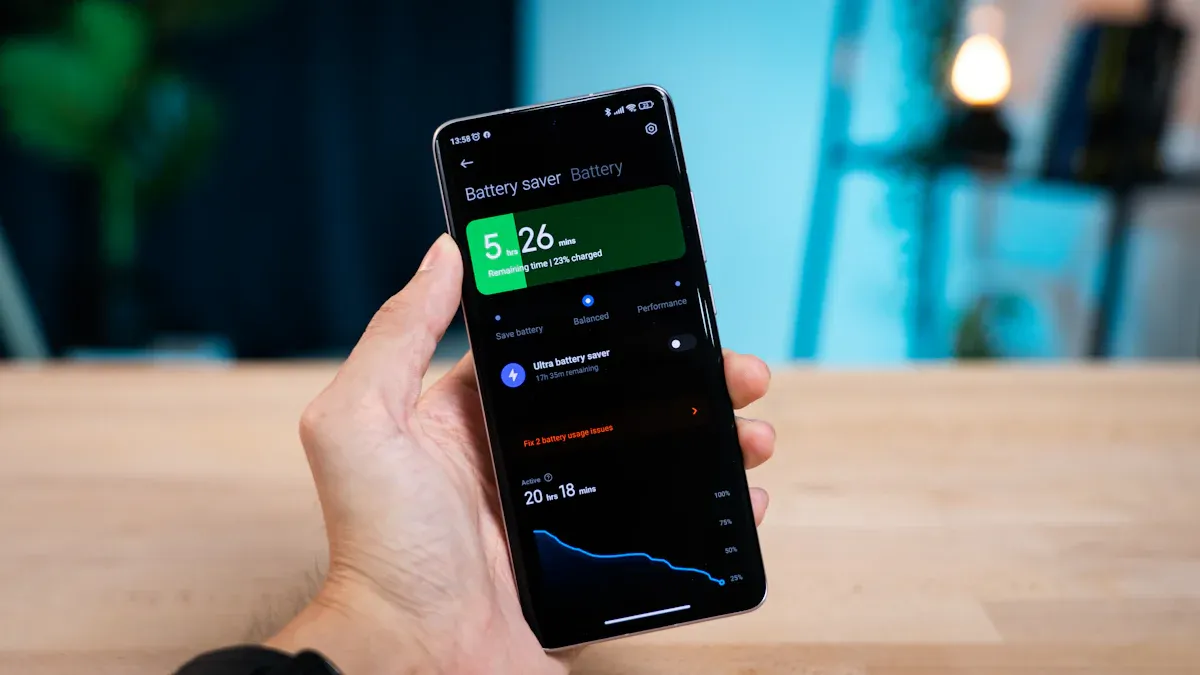
Use Battery Saver Mode
Don’t forget about the built-in battery saver features on your Android device. When you enable Battery Saver Mode, it disables certain features to extend battery life. This mode turns off the always-on display, limits background activity, and delays notifications. While it restricts some features, you can still make calls and send messages.
Note: Activating Battery Saver Mode can help you stretch your battery life significantly, especially during those times when you can’t charge your phone.
Incorporating these strategies into your daily routine can help you get the most out of your Android device’s battery. By managing your screen brightness, controlling background apps, and utilizing battery saver features, you can enjoy longer usage times without the constant worry of running out of power.
iPhone Tips for Better Battery Life
Optimize Screen Brightness
To get the most out of your iPhone’s battery, start by optimizing your screen brightness. A bright display can quickly drain your battery, so it’s wise to lower it to a comfortable level. Here are some tips to help you adjust your brightness effectively:
- Lower your screen brightness as much as you can tolerate. Start from 100% and reduce it to 50% or even 25% if necessary.
- Use the Control Center to adjust brightness easily. Just swipe down from the top-right corner of your screen and slide the brightness bar.
- Lower brightness temporarily when your battery is low or when you won’t have access to a charger for a while.
By making these adjustments, you can significantly extend your battery life and avoid that dreaded low battery anxiety.
Control Location Services
Location services can be a hidden battery drainer on your iPhone. Many apps, like weather, shopping, and social media, track your location unnecessarily, which can impact your battery life. To manage this, you should:
- Go to Settings > Privacy > Location Services and review which apps have access to your location.
- Change the setting from ‘Always’ to ‘While Using the App’ for apps that don’t need constant tracking.
- Consider using the Significant-change Location service, which is more energy-efficient.
By controlling location services, you can prevent apps from consuming battery power when you’re not using them. This simple step can lead to a noticeable improvement in your battery performance.
Enable Low Power Mode
When your battery is running low, enabling Low Power Mode can be a game-changer. This feature reduces background activity and optimizes performance to extend your battery life. Here’s how it works:
| Metric | Normal Mode | Low Power Mode | Difference |
|---|---|---|---|
| Average Screen-On Time (iPhone 14) | 6h 12m | 8h 45m | +2h 33m |
As you can see, switching to Low Power Mode can give you an extra 2 hours and 33 minutes of screen-on time! To enable it, go to Settings > Battery and toggle on Low Power Mode. You’ll notice that some features, like mail fetch and background app refresh, will be limited, but you can still make calls and send messages.
By incorporating these tips into your daily routine, you can significantly improve your iPhone’s battery life. Whether it’s adjusting your screen brightness, managing location services, or enabling Low Power Mode, each step helps you get more out of your phone without the constant worry of running out of battery.
Battery Management Comparison
When it comes to managing battery life, Android and iPhone devices have some notable differences. Understanding these can help you make the most of your phone’s battery.
Key Differences in Settings
Here’s a quick comparison of battery management features between Android and iPhone:
| Feature | Android | iPhone |
|---|---|---|
| Charging Speed | Supports high-wattage charging, some up to 120W | Caps at around 30W wired, 15W MagSafe |
| Background Management | Uses Adaptive Battery and Doze Mode | Aggressively freezes background apps |
| User Control | Offers manual control over performance and apps | Limited manual controls, relies on automation |
| Standby Drain | 5-8% overnight drain | 2-4% overnight drain |
| Battery Health Management | Varies by brand, may need third-party apps | Consistent Battery Health metrics across models |
| Display Management | Manual control of refresh rates | ProMotion dynamically adjusts refresh rates |
As you can see, Android gives you more manual control over settings, while iPhones focus on automation for efficiency.
Unique Battery-Saving Features
Both platforms offer unique features to help extend battery life. Here are some standout options for Android:
- Dark Mode: Switching to dark mode can significantly save battery life, especially on OLED screens. You can even schedule it to switch automatically.
- Put Unused Apps to Sleep: This feature stops background processes for apps you don’t use often, leading to immediate battery savings.
On the other hand, iPhones excel with features like Low Power Mode, which reduces background activity and optimizes performance when your battery is low.
By understanding these differences, you can choose the best strategies to extend your phone’s battery life effectively.
You’ve learned some great strategies to extend your phone’s battery life. Adjusting screen brightness, managing background apps, and using battery saver modes can make a big difference. Implement these tips to keep your battery running longer. Have your own tips? Share your experiences in the comments below!
FAQ
How can I check my battery health on Android?
You can check battery health by going to Settings > Battery > Battery Usage. Some devices also have a dedicated battery health feature.
What should I do if my battery drains quickly?
Try adjusting brightness, managing background apps, and enabling battery saver mode. These steps can help extend your battery life significantly.
Does using dark mode really save battery?
Yes! Dark mode can save battery life, especially on OLED screens, as it uses less power for darker pixels.
