
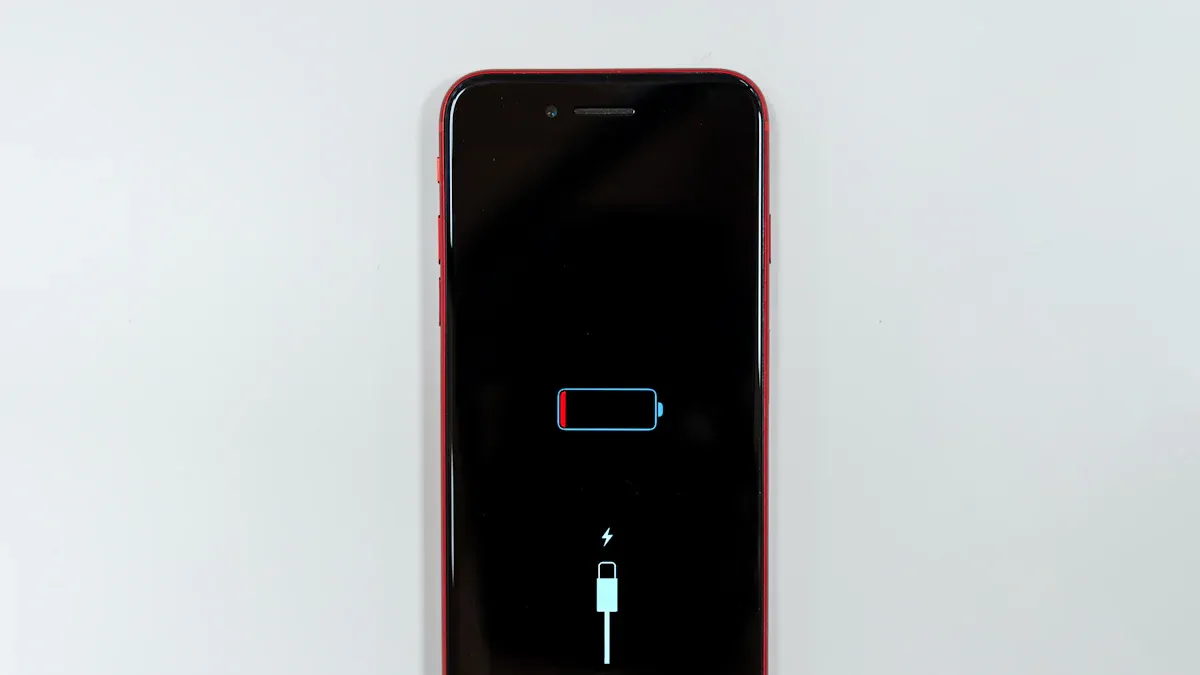
Dealing with a battery not charging can be incredibly frustrating. You’re not alone in this struggle! The good news is that there are solutions to get your device powered up again. First, it’s essential to pinpoint what’s causing the battery not charging issue. Sometimes, it’s as simple as a loose cable or a faulty outlet. Other times, it might be deeper, like battery health problems. Whatever the case, let’s explore how to troubleshoot and resolve these battery not charging issues together!
Key Takeaways
Start troubleshooting by checking the power source. Test the wall outlet and power strip to ensure they are functioning properly.
Inspect your charging cable for damage. Look for fraying, bending, or connector issues that could prevent charging.
Check the power adapter for overheating or inconsistent power output. A faulty adapter can lead to charging problems.
Restart your device to clear minor software glitches that may stop it from recognizing the charger.
Regularly evaluate your battery health. Look for signs of damage or rapid drain to determine if a battery replacement is needed.
Power Source Check

When your device’s battery is not charging, the first step is to check the power source. Sometimes, the issue lies not with your device but with the outlet or power strip you’re using. Let’s dive into how you can inspect these components.
Inspect Wall Outlet
Start by examining the wall outlet where you plug in your charger. Make sure it’s functional. A simple way to do this is by using a receptacle tester. Just plug it in, and it will indicate if there are any wiring issues. If you don’t have one, you can also use a non-contact voltage tester. This handy tool lets you check for voltage without touching any wires. If you have a multimeter, you can measure the voltage, current, and resistance to ensure the outlet is providing power.
Tip: If you find that the outlet is not working, try plugging in another device to see if it charges. This can help you determine if the outlet is the problem.
Test Different Outlets
If the wall outlet seems fine, it’s time to test different outlets. Sometimes, the issue might be with a specific outlet or a faulty power strip. Here are some signs that your power strip might be malfunctioning:
Sign of Malfunction | Implication for Device Charging |
|---|---|
Inconsistent power delivery | Device may not charge properly or at all. |
Surge protector lifespan reached | Power strip may stop providing power, affecting device charging. |
Old surge suppressor still providing power | Device may be at risk due to lack of surge protection. |
If you notice any of these signs, consider replacing the power strip. It’s a simple fix that can save you from ongoing charging issues.
Remember, charging issues can often stem from power source problems. By checking your outlets and power strips, you can rule out these common reasons before moving on to other troubleshooting steps.
Charging Accessories Inspection
When your battery is not charging, the problem might lie with your charging accessories. Let’s take a closer look at the two main components: the charging cable and the power adapter.
Check Charging Cable
First, inspect your charging cable. A damaged cable is one of the most common reasons for charging issues. In fact, about 10% of charging failures are due to damaged cables. Here are some typical types of damage you might find:
Fraying: This often happens when you pull the cable from the middle instead of the connector.
Bending and Twisting: Sharp bends can stress the internal wires, leading to breakage near the connectors.
Connector Damage: Using your phone while it charges can strain the connector, causing it to become loose or damaged.
Tip: If you notice any visible damage, it’s best to replace the cable. A new cable can often solve your charging issues quickly.
Next, follow these steps to inspect your cable effectively:
Look for frayed ends, cuts, or bent connectors.
Test the cable with another device to see if it charges.
If possible, try a different cable with your device to rule out cable issues.
Inspect Power Adapter
Now, let’s check the power adapter. A faulty adapter can also lead to charging problems. Here’s how you can determine if your adapter is functioning correctly:
Issue | Description |
|---|---|
Overheating | This can occur due to overload or poor ventilation, which reduces the adapter’s lifespan. |
No Power Output | Damaged internal components or broken cables can cause this issue. |
Intermittent Power | Loose connectors or worn cables may lead to inconsistent power delivery. |
Electrical Noise | Inadequate filtering or low-quality components can affect your device’s performance. |
If you notice any of these issues, consider replacing the adapter. It’s a simple fix that can save you from ongoing charging problems.
By inspecting both your charging cable and power adapter, you can identify common reasons for your charging issues. If everything looks good but your battery will not charge, it might be time to explore other troubleshooting steps.
Software Issues and Fixes
Sometimes, your device might not charge due to software glitches. These issues can be frustrating, but you can often resolve them with a few simple fixes. Let’s explore how you can troubleshoot software-related problems that may cause your battery not charging.
Restart Device
One of the easiest and most effective solutions is to restart your device. A minor, temporary glitch in the system can stop it from recognizing that a charger is even plugged in. The classic fix? A quick reboot. It clears out the device’s short-term memory and gives every background program a fresh start, solving a surprising number of charging mysteries in the process.
To restart your device, follow these steps:
For most smartphones: Press and hold the power button until you see the option to restart.
For tablets and laptops: You may need to hold down the power button longer or use the restart option in the settings menu.
Tip: If a simple restart doesn’t work, try a force restart. This can help reset any stubborn software issues.
Update Software
Keeping your device’s software up to date is crucial for optimal performance. Software updates often include bug fixes and improvements that can resolve charging issues. Here’s how to check for updates:
Go to your device’s Settings.
Look for Software Update or System Update.
If an update is available, follow the prompts to download and install it.
Regularly updating your device can prevent many charging issues. If your battery will not charge after an update, consider resetting network settings or clearing cache and temporary files. These steps can also help improve your device’s performance.
By addressing software issues, you can often resolve charging problems quickly. If you still experience charging issues after trying these fixes, it may be time to explore hardware-related problems or seek professional support.
Battery Health Evaluation
When your battery is not charging, it’s crucial to evaluate its health. A healthy battery ensures your device runs smoothly. Let’s explore how you can check your battery settings and run diagnostics to identify any issues.
Check Battery Settings
Start by checking your battery settings. Most devices allow you to monitor battery performance and charging behavior. Look for signs of a failing battery, such as:
Warm Battery: If your battery feels warm after charging, it might indicate internal damage.
Swollen Case: A bulging battery case is a clear sign of pressure and damage.
Low State of Charge: If your battery doesn’t hold a charge well, it may have internal issues.
You can use various tools to evaluate battery health on smartphones and laptops. Some popular options include:
Pure Battery Analytics: A free app from the Microsoft Store that provides insights into battery status.
BatteryInfoView: This app offers detailed information about battery health, including charge cycles.
PassMark BatteryMon: It monitors battery charge levels with real-time graphs.
Save Battery: A simple app for checking battery health, especially for Windows tablets.
Run Battery Diagnostics
Running diagnostics can help pinpoint specific problems. Battery diagnostics balance speed and accuracy. Quick tests might not provide conclusive results, so take your time for a thorough check. Common battery health problems detected by diagnostics include:
Rapid Battery Drain
Charging Issues and Inconsistencies
Overheating
Physical Battery Problems (like swelling)
If you notice any of these issues, it’s time to consider replacing your battery. Remember, a healthy battery is essential for your device’s performance. By regularly checking your battery settings and running diagnostics, you can catch potential problems early and avoid frustrating charging issues.
In summary, if your battery isn’t charging, start with these simple fixes: check the outlet, inspect your charging gear, and restart your device. These steps can help you identify the root cause of the issue. If you still face problems, remember to clean the charging port and look for any signs of damage.
If these solutions don’t work, it might be time to contact support or seek professional help. Ignoring persistent issues can lead to more significant problems down the line. Taking action now can save you from future headaches!
FAQ
What should I do if my device still won’t charge after trying all the troubleshooting steps?
If your device still won’t charge, consider checking for physical damage to the charging port. If everything looks fine, it might be time to contact support for further assistance.
How can I tell if my battery needs to be replaced?
Signs that your battery may need replacement include rapid battery drain, overheating, or a swollen battery case. If you notice these issues, it’s best to seek professional help.
Is it safe to use third-party chargers?
Using third-party chargers can be risky. Always choose reputable brands to avoid damaging your device. If you’re unsure, stick with the original charger or certified alternatives.
How often should I check my battery health?
You should check your battery health regularly, especially if you notice charging issues. Keeping an eye on performance can help you catch problems early.
When should I contact support for charging issues?
If you’ve tried all troubleshooting steps and your device still won’t charge, it’s time to contact support. They can provide expert guidance and help resolve the issue.