
Battery charging issues can be incredibly frustrating. When your device won’t charge, it disrupts your day. Understanding the causes behind these power problems helps you tackle them effectively. You can maintain your battery’s health by recognizing common issues and knowing how to fix common battery challenges. A poor connection may be the culprit, but with the right steps, you can get back on track.
Key Takeaways
Check your charger and cable for damage. A faulty charger or cable is a common reason for charging issues. Replace them if you notice frays or loose connections.
Keep your charging port clean. Dirt can prevent proper connections, leading to slow or no charging. Use compressed air and a toothpick to clean it safely.
Test with another charger. If your device doesn’t charge, using a different charger can help identify if the original one is faulty or if the problem lies within the device.
Causes of Battery Issues
When your device isn’t charging, several common reasons could be at play. Let’s explore some of the main culprits.
Faulty Charger
A faulty charger is one of the most frequent reasons for battery not charging. Look for signs like frayed or exposed wires, which can pose serious hazards. If you notice a strange smell or hear buzzing sounds from the charger, it’s time to replace it. A loose connection or inconsistent charging can also indicate that the charger is the wrong charger for your device or simply broken.
Damaged Cable
Next, check your charging cable. Damage can happen easily, especially if you don’t handle cables properly. Here are some common types of cable damage to watch for:
Bends or twists near the connectors.
Fraying along the length of the cable.
Loose connectors that don’t fit snugly in the port.
Using high-quality cables and reinforcing weak areas can help prevent these issues. Remember, a damaged cable can lead to slow charging or even a dead battery.
Dead Battery
Finally, consider the possibility of a dead battery. Over time, batteries lose their ability to hold a charge effectively. If your device shuts down unexpectedly or won’t turn on despite showing a charging icon, you might be dealing with a dead battery. Most lithium-ion batteries last around 2 to 3 years, so if yours is older, it may be time for a replacement.
By understanding these common reasons for battery issues, you can take steps to troubleshoot and resolve them effectively.
Troubleshooting Steps
When your device isn’t charging, you can take several steps to diagnose the problem. Here’s how to troubleshoot effectively.
Check Power Source
First, make sure your power source is working. Follow these steps to check:
Test the Outlet: Plug in a lamp or another device to see if the wall socket is live.
Inspect the Cable: Look for any kinks, frays, or damage on your charging cable. These wires lead a tough life, and a break inside the cable is a common point of failure.
Check the Charger: If you have a compatible charger, try using it. Sometimes, the charger can fail internally, even if its indicator light turns on.
By ensuring the power source is functional, you can rule out one of the most common issues.
Inspect Connections
Next, take a close look at the connections. Proper connections are crucial for charging. Here are some tips to keep in mind:
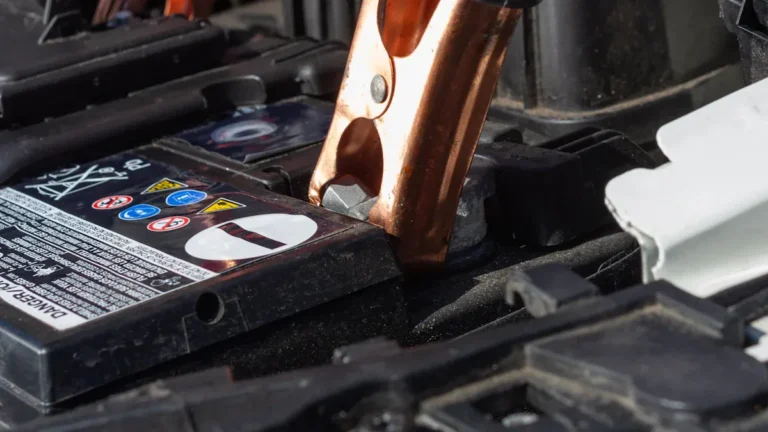
Ensure good ventilation when charging to avoid dangerous gases.
Keep away from smoking or open flames due to flammable gases emitted by batteries.
Verify that terminal connections are correct to prevent sparks or damage.
Monitor the charging process closely and do not leave the charger unattended.
Immediately turn off the charger if any strange sounds, smoke, or unusual smells occur.
Avoid using damaged chargers to prevent hazards.
Prevent metal tools from touching each other to avoid short circuits.
If you notice any loose or corroded connections, you might want to use tools like a digital multimeter for voltage testing or a test light to diagnose electrical faults. A visual inspection can also help you spot frayed wires or loose plugs.
Test with Another Charger
If your device still isn’t charging, testing with another charger can help isolate the issue. Here’s why this step is important:
Testing with a different charger can help identify if the original charger is faulty.
It can also reveal if the issue is related to the device’s charging system or the power source.
If you find that your device charges with another charger, you may need to replace the original one. If it doesn’t charge, the problem might lie within the device itself.
By following these troubleshooting steps, you can better understand what might be causing your battery issues. If you still can’t get your device to charge, it may be time to test the battery or seek professional help.
Fixing Guide for Charging Issues
When you face battery charging problems, there are several effective solutions you can try. Here’s a handy fixing guide to help you get your device back on track.
Replace Charger or Cable
If your charger or cable is faulty, replacing them can often solve the issue. Here are some steps to follow:
Test the Outlet: Plug a lamp or another working device into the wall socket to ensure it’s live.
Inspect the Cable: Look for any kinks, frays, or damage on your charging cable.
Check the Charger: Try a different, compatible charger if available.
These actions can help you identify whether the problem lies with the charger or cable. If you notice any damage, replace them immediately to avoid further issues. Remember to match device requirements with the charger output to prevent under- or over-charging.
Clean Charging Port
A dirty charging port can lead to poor connections and battery not recharging. Regular cleaning is essential for optimal performance. Here’s how to do it safely:
Turn off your device and use a can of compressed air to blow out dirt from the charging port.
If needed, gently scrape the inside walls of the port with a wooden or plastic toothpick.
Finally, spray the compressed air again to remove any loosened debris.
Keeping your charging port clean ensures better alignment of power contacts, reducing resistance and enhancing charging speed.
Seek Professional Help
If you’ve tried the above solutions and your device still won’t charge, it might be time to seek professional help. Consider this option if:
The battery drain issue persists despite your efforts.
You suspect serious battery damage, like the phone dying immediately after unplugging.
Professional repair services can often fix internal components that you can’t address on your own. Plus, repairing a device can extend its lifespan and reduce your carbon footprint compared to replacement.
By following this fixing guide, you can tackle common battery problems effectively and keep your device running smoothly.
In summary, diagnosing and addressing battery charging issues promptly is crucial. Here are some proactive steps you can take:
Monitor your battery’s state of health.
Manage temperature to prevent degradation.
Optimize charging practices by avoiding full charges.
Taking these actions helps maintain your battery’s lifespan and performance. If problems persist, don’t hesitate to seek professional help!
FAQ
What should I do if my car battery is dead?
If your car battery is dead, try jump-starting it with jumper cables or consider a battery replacement if it won’t recharge.
How can I diagnose a battery issue?
To diagnose a battery issue, check for signs like slow charging, unusual smells, or a drained vehicle battery. Testing with another charger can help too.
Why does my device take so long to charge?
Slow charging can result from a faulty charger, damaged cable, or a dirty charging port. Clean the port and inspect the charger for issues.