

Have you ever found yourself frantically searching for an outlet while your device teeters on the brink of death? You’re not alone. Many users report that battery life is a top concern, especially when nearly 60% of people prioritize longer battery life when buying a new laptop. The frustration of a dying battery can disrupt your day, but you can extend battery life without sacrificing performance. By making a few simple adjustments, you can keep your devices running longer while enjoying all their features.
Display Settings
Reduce Brightness
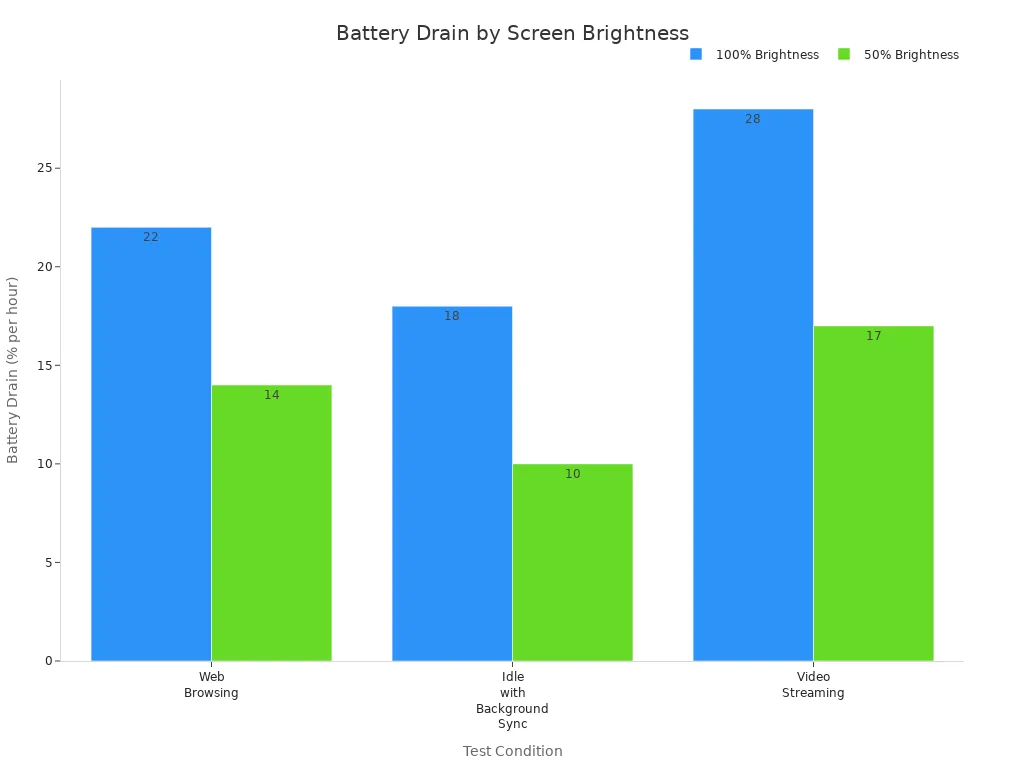
One of the easiest ways to extend battery life is by adjusting your screen brightness. Bright screens drain your battery faster than you might think. For example, when you set your screen brightness to 100%, you can see a significant increase in battery drain. Here’s a quick look at how different brightness levels affect battery consumption:
Test Condition | Screen Brightness | Battery Drain (per hour) |
|---|---|---|
Web Browsing | 100% | 22% |
Web Browsing | 50% | 14% |
Idle with Background Sync | 100% | 18% |
Idle with Background Sync | 50% | 10% |
Video Streaming | 100% | 28% |
Video Streaming | 50% | 17% |
As you can see, reducing your brightness to around 50% can cut battery drain significantly. You can also enable auto-brightness, which adjusts your screen based on the surrounding light. This simple feature can save you a lot of battery power. For instance, in a moderately lit office, an iPhone 6s used only 16% of its battery over an hour with auto-brightness on. In contrast, an Android phone in a similar test used 25% of its battery with auto-brightness enabled. So, not only does it help conserve battery power, but it also improves readability in varying light conditions.
Use Dark Mode
Another effective way to extend battery life is to use dark mode, especially if you have an OLED screen. Unlike traditional LCD displays, OLED technology allows individual pixels to turn off completely when displaying black. This means that using dark mode can lead to significant battery savings. Research shows that switching to dark mode on OLED devices can save up to 60% of battery life.
When you use dark mode, the darker pixels consume less power, which is a game-changer for battery conservation. Since the display is a major contributor to battery drain, this adjustment can make a noticeable difference. By activating dark mode system-wide, you not only conserve battery power but also reduce eye strain, making it a win-win situation.
Connectivity Management
Disable Unused Connections
You might not realize it, but leaving connections like Bluetooth, GPS, or NFC on can drain your battery. When you’re not using these features, it’s best to turn them off. Here’s a quick look at how much battery they can consume:
Feature | Battery Drain Impact |
|---|---|
Bluetooth | Less than 0.5% per hour |
GPS | More power-intensive |
NFC | Almost no power |
As you can see, while Bluetooth and NFC don’t use much power, GPS can be a real battery hog. If you’re not actively using location services, switch it off to conserve battery power. By managing these connections, you can extend battery life without sacrificing performance.
Use Wi-Fi Instead of Cellular
When it comes to internet access, using Wi-Fi is a smarter choice. Wi-Fi connections consume less energy compared to cellular data. Here’s a breakdown of the energy consumption:
Connection Type | Energy Consumption |
|---|---|
Wi-Fi | 30mW |
Cellular Data | Higher than Wi-Fi |
Using Wi-Fi allows your device to maintain a stable connection without draining your battery as quickly. Cellular data, on the other hand, keeps a constant background connection for calls and texts, which can lead to higher battery drain.
To optimize app settings, consider these points:
Browsing over GSM consumes more power than Wi-Fi.
A constant connection to the cellular network increases battery usage.
By switching to Wi-Fi whenever possible, you can significantly improve your battery performance. So, next time you’re out and about, look for a Wi-Fi connection to help conserve battery power.
App Management
Limit Background Apps
Managing background apps is crucial for extending battery life. These apps often consume power by refreshing content and using data, even when you’re not actively using them. Here are some common culprits that drain your battery:
Google apps
Facebook and Facebook Messenger
Instagram
YouTube
ChatGPT and other AI apps
Tinder
Amazon apps
Uber
Games like Call of Duty: Mobile
These apps frequently access location data and sync in real-time, which can lead to significant battery drain. For instance, Facebook’s constant background processes and YouTube’s streaming capabilities make them particularly resource-intensive. To optimize app settings, consider limiting the number of apps running in the background.
Closing idle apps may seem like a good idea, but studies show that it doesn’t always improve battery life. In fact, reopening apps after closing them can consume more battery as they reload. Instead, focus on managing which apps run in the background.
Manage Notifications
Notifications can also impact battery performance. Frequent alerts require your phone to use resources, leading to increased battery drain. This is especially true for messaging apps that constantly check for updates. Here’s how to manage app notifications effectively:
Turn off notifications for non-essential apps.
Use “Do Not Disturb” mode during specific hours.
Limit notifications with rich media, as they consume more power than simple text alerts.
By managing app notifications, you can reduce unnecessary wake-ups and conserve battery power. Remember, optimizing your app settings not only helps extend battery life but also enhances your overall device performance.
Power-Saving Mode
Enable Adaptive Settings
Enabling power-saving mode can be a game-changer for your device’s battery life. This feature optimizes how your device uses power, allowing you to extend battery life without sacrificing too much performance. When you activate adaptive settings, your device makes several adjustments to help conserve energy.
Here’s a quick look at how these adjustments impact battery longevity and performance:
Feature | Effect on Battery Longevity | Effect on Performance |
|---|---|---|
Performance adjustments | Helps extend battery life | May reduce performance during high-demand tasks |
Lower screen brightness | Contributes to battery savings | Minimal impact on performance |
Limit background activity | Reduces battery drain | Can affect app performance |
Activate Low Power Mode | Extends battery life | Not applicable during high-demand tasks |
By limiting background activity and reducing screen brightness, you can significantly cut down on battery consumption. However, keep in mind that some performance may take a hit during demanding tasks. For instance, if you’re gaming or using resource-heavy apps, you might notice a slight lag. But for everyday tasks, the trade-off is often worth it.
Charge to 80-85%
Did you know that how you charge your device can also affect its battery health? Charging your battery to only 80-85% instead of 100% can greatly enhance its longevity. Here’s why this practice is beneficial:
Benefit | Explanation |
|---|---|
Preserving Battery Longevity | Keeping charge levels below 80% reduces stress on the battery, slowing degradation and extending lifespan. |
Enhanced Charging Efficiency | Charging slows significantly after 80%, making it more efficient to stop at this level. |
Adequate Range for Daily Needs | An 80% charge typically provides sufficient range for daily activities, reducing the need for full charges. |
Think of it like the tread on a car tire. A new tire has deep grooves and grips the road perfectly. But with every mile you drive, a tiny bit of that rubber wears away. A battery cycle works the same way. Frequent full charges can lead to a high cycle count, which reduces battery capacity over time.
To maximize your battery’s lifespan, aim to operate within a moderate state of charge. This practice minimizes stress on battery components and reduces heat generation, which can further improve battery health.
By adopting these charging habits and enabling power-saving mode, you can effectively extend battery life while still enjoying the performance you need.
You now have several effective strategies to extend your device’s battery life without sacrificing performance. Here’s a quick recap of what you can do:
Adjust display settings: Lower brightness and use dark mode.
Manage connectivity: Turn off unused connections and prefer Wi-Fi over cellular data.
Control app usage: Limit background apps and manage notifications.
Utilize power-saving mode: Enable adaptive settings and charge your device to 80-85%.
By implementing these tips, you can maximize your battery’s lifespan and enjoy a smoother performance. Remember, proper battery management not only enhances your device’s efficiency but also contributes to its longevity.