

Imagine you’re out and about, and suddenly your phone shows that dreaded low battery warning. You look around, but there’s no charger in sight. This situation highlights why you need effective battery saving tips. These tips can help you stretch your device’s power when you need it most.
Key Takeaways
Lower your screen brightness to save battery life. Reducing it from maximum to moderate can extend usage by 3 to 5 hours.
Close unused apps regularly. This simple action can help save battery life by preventing background processes from draining power.
Enable power-saving modes on your device. These modes limit background activity and can significantly boost battery life when needed.
Battery Saving Tips: Adjust Settings
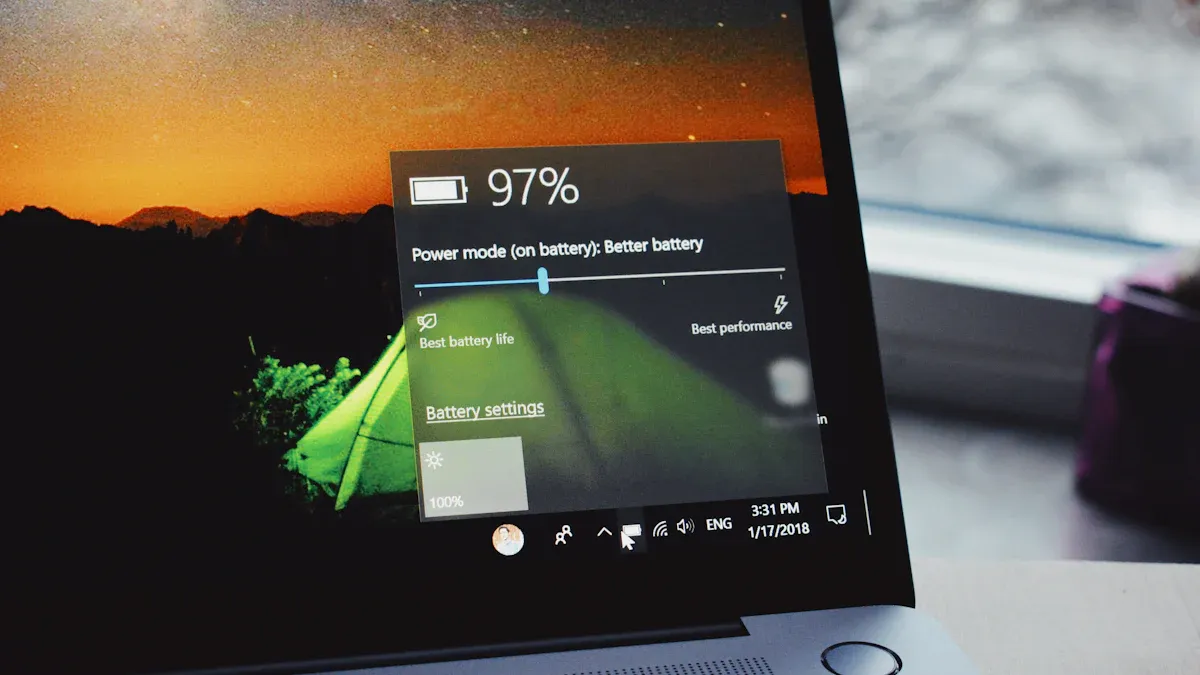
When it comes to saving battery power, adjusting your device settings can make a huge difference. You might not realize it, but small tweaks can lead to significant improvements in battery life. Let’s dive into two key areas: screen brightness control and sleep mode optimization.
Screen Brightness Control
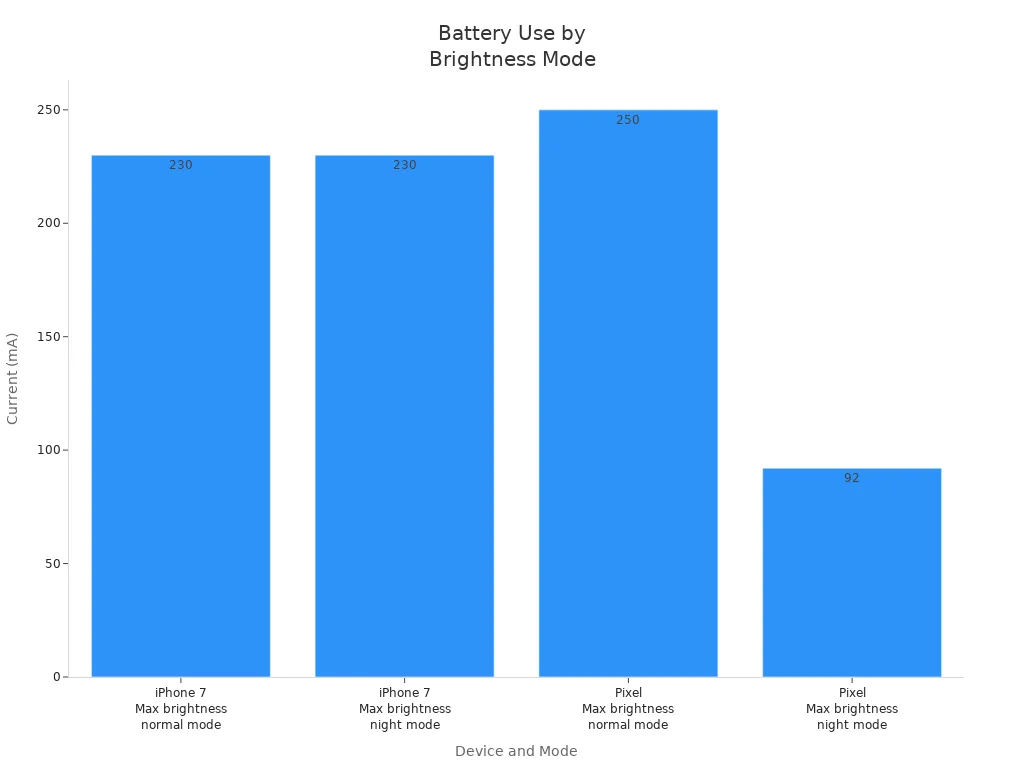
One of the biggest battery drains on your device is the screen brightness. Keeping your screen at maximum brightness can consume a lot of power. In fact, studies show that modern smartphones can draw up to 250 mA when the screen is at full brightness. Here’s a quick look at how different brightness settings impact battery consumption:
Device | Mode | Current (mA) |
|---|---|---|
iPhone 7 | Max brightness normal mode | 230 |
iPhone 7 | Max brightness night mode | 230 |
Pixel | Max brightness normal mode | 250 |
Pixel | Max brightness night mode | 92 |
To effectively save battery power, consider these tips for managing your screen brightness:
Decrease screen brightness: Lowering it from maximum to moderate levels can extend your device runtime by 3 to 5 hours.
Use auto-brightness: This feature adjusts brightness based on your surroundings, achieving nearly 90% of the efficiency of manually set low brightness.
Set a comfortable level: Reducing brightness from 100% to 50% can provide an additional 3-4 hours of use, while lowering it further from 50% to 25% can add another 2-3 hours.
By making these adjustments, you can significantly enhance your device’s battery life.
Sleep Mode Optimization
Another effective way to conserve battery is by optimizing your sleep mode settings. Sleep mode is designed to save energy, but how you use it matters. For short breaks, like when you’re waiting in line, sleep mode is perfect. However, if you plan to be away from your device for longer periods, such as overnight, consider shutting it down completely. This prevents unnecessary battery cycling and wear.
Adjusting sleep mode duration can greatly impact your battery longevity. Frequent use while unplugged can lead to battery drain. Here are some tips to optimize sleep mode:
Set a shorter sleep timer: This ensures your device goes to sleep quickly when not in use.
Turn off notifications: Reducing notifications can prevent your device from waking up unnecessarily, which saves battery.
Limit background activity: Some devices allow you to restrict background processes during sleep mode, further conserving energy.
By following these strategies, you can maximize your device’s battery life and avoid that dreaded low battery warning when you need your device the most.
Managing Apps for Longer Battery Life
Managing your apps effectively can have a big impact on your device’s battery life. When you leave apps running in the background, they can drain your battery even when you’re not actively using them. Here are some strategies to help you close unused apps and limit background processes.
Closing Unused Apps
You might think that leaving apps open doesn’t affect your battery much, but that’s not the case. A 2024 study by Battery University found that while screen-on time accounts for 47% of total battery usage, background app processes still contribute to battery drain. Regularly closing unused apps can help you achieve longer battery life. Here are some tips:
Close apps you’re not using: If you have multiple apps open, close the ones you don’t need. This simple action can save you a few percentage points of battery life.
Use the app switcher: On most devices, you can swipe up or tap a button to see all open apps. From there, you can easily close them.
Be mindful of battery-intensive apps: Apps like TikTok, Facebook, and YouTube are known for their heavy resource use. Avoid using high powered applications when you’re trying to conserve battery.
Limiting Background Processes
Background processes can be sneaky battery drainers. They keep running even when you’re not using the app, performing tasks like syncing data or sending notifications. Here’s how to limit these processes:
Enable Adaptive Battery: This feature limits background activity for apps you rarely use. It helps your device learn which apps you need and which ones can take a break.
Adjust app settings: Go to ‘Battery and device care’ in your settings. Tap ‘Optimize now’ to check which apps are using the most battery in the background. You can select an app and tap ‘Limit usage’ to put it to sleep or deep sleep.
Restrict location access: Apps that track your location, like Google Maps, can drain your battery quickly. Limit their access to only when you’re using the app.
By managing your apps and limiting background processes, you can significantly enhance your device’s battery life. This way, you can avoid that low battery warning when you need your device the most.
Power-Saving Modes and Features
Power-saving modes are built-in features on your device that help you extend battery life when you need it most. These modes can significantly reduce power consumption by limiting background activity and optimizing performance. Here’s how you can enable and customize these features for maximum efficiency.
Enabling Power-Saving Mode
Turning on battery saver mode is a quick way to boost your device’s battery life. Here’s how you can do it on different platforms:
For Android:
Swipe down to access the quick panel.
Tap on ‘Power Saving’.
Select ‘Details’ to explore additional options.
For iOS:
Open Settings.
Tap on Battery.
Toggle on Low Power Mode.
When you enable these modes, you can see a noticeable increase in battery life. For instance, activating Low Power Mode on a MacBook Air can give you a 10% boost in battery life on a full charge.
Customizing Settings for Efficiency
You can further enhance battery efficiency by customizing settings within power-saving modes. Here are some effective adjustments:
Setting | Description |
|---|---|
Power Mode | Choose ‘Best Power Efficiency’ to limit background activity. |
Screen & Sleep Timers | Set shorter times for screen-off and sleep to reduce idle power use. |
Dark Mode | Opt for ‘Dark’ mode to save power, especially on OLED screens. |
Wi-Fi/Bluetooth | Turn off Wi-Fi and Bluetooth when not in use to conserve battery. |
By tailoring these settings, you can maximize your device’s battery life and ensure it lasts longer throughout the day. Remember, using features like Extreme Battery Saver on Android can pause most apps and notifications, keeping only essential functions active during emergencies.
To keep your device running longer, remember these key battery-saving strategies:
Adjust screen brightness and sleep settings.
Manage apps by closing unused ones and limiting background processes.
Enable power-saving modes when needed.
By following these tips, you can maximize battery life and avoid unexpected power loss. Happy charging! ⚡
FAQ
What is the best way to save battery life on my device?
Adjust screen brightness, close unused apps, and enable power-saving modes to extend battery life effectively.
How often should I charge my device?
Charge your device when it drops below 20% to maintain battery health and longevity.
Can background apps really drain my battery?
Yes, background apps can consume power by syncing data and sending notifications, even when you’re not using them.